Keep your Banalytics server secure, stable, and up to date. This page explains how to check your installed software version, add or remove feature modules, apply updates, roll back to an earlier release, and opt into staging builds for early access to new capabilities.
// How it works
Versions, modules, and the portal
Banalytics consists of a local server application and a browser-based web console. Both are versioned independently. The server software runs on your hardware and does all local processing. The portal at console.banalytics.live connects to it remotely and is the place where you manage versions and modules.
Server software
The core application running on your PC. Versioned per release. Updated through the portal upgrade center without touching local files manually.
Feature modules
Optional capability bundles added on top of the core. Each module is versioned independently. You choose which modules are installed and which version each one runs.
Release channel
Choose between the stable Production channel for day-to-day use, or switch to the Staging channel to access and test upcoming features before they are officially released.
The Servers view in the portal lists every connected server. Click the action button next to a server to see its installed modules, current versions, and available updates.
// What comes pre-installed
Default modules
Every fresh Banalytics installation includes three modules that cover the most common camera and device connectivity needs. These are active immediately after setup with no extra configuration required.
01
CORE
Always installed
Banalytics Core
Foundation infrastructure for the entire platform: system management, local file storage, portal connectivity, event management, audio output, system monitoring, and the full library of automation actions.
↓ extends core with camera and media stream support
02
MED
Included by default
Basic Media
Connects USB cameras, built-in webcams, and generic network cameras. Provides motion detection, continuous recording, motion recording, watermarking, and image snapshot tasks.
↓ extends core with ONVIF protocol support
03
ONV
Included by default
Basic ONVIF
Adds full ONVIF camera support including PTZ control, media profile management, and remote device reboot. Works alongside Basic Media for complete camera coverage.
Free to use: All three default modules are included at no cost and cover core camera and device connectivity. See Banalytics Modules for a complete list of available modules including premium options.
// Step by step
Adding, updating, and removing modules
All module management happens in the portal. No files need to be copied or commands run on the server PC.
01
Open the Servers menu
Log in at console.banalytics.live and navigate to the Servers section. You will see all servers registered to your account along with their current connection status.
02
Open the module list for your server
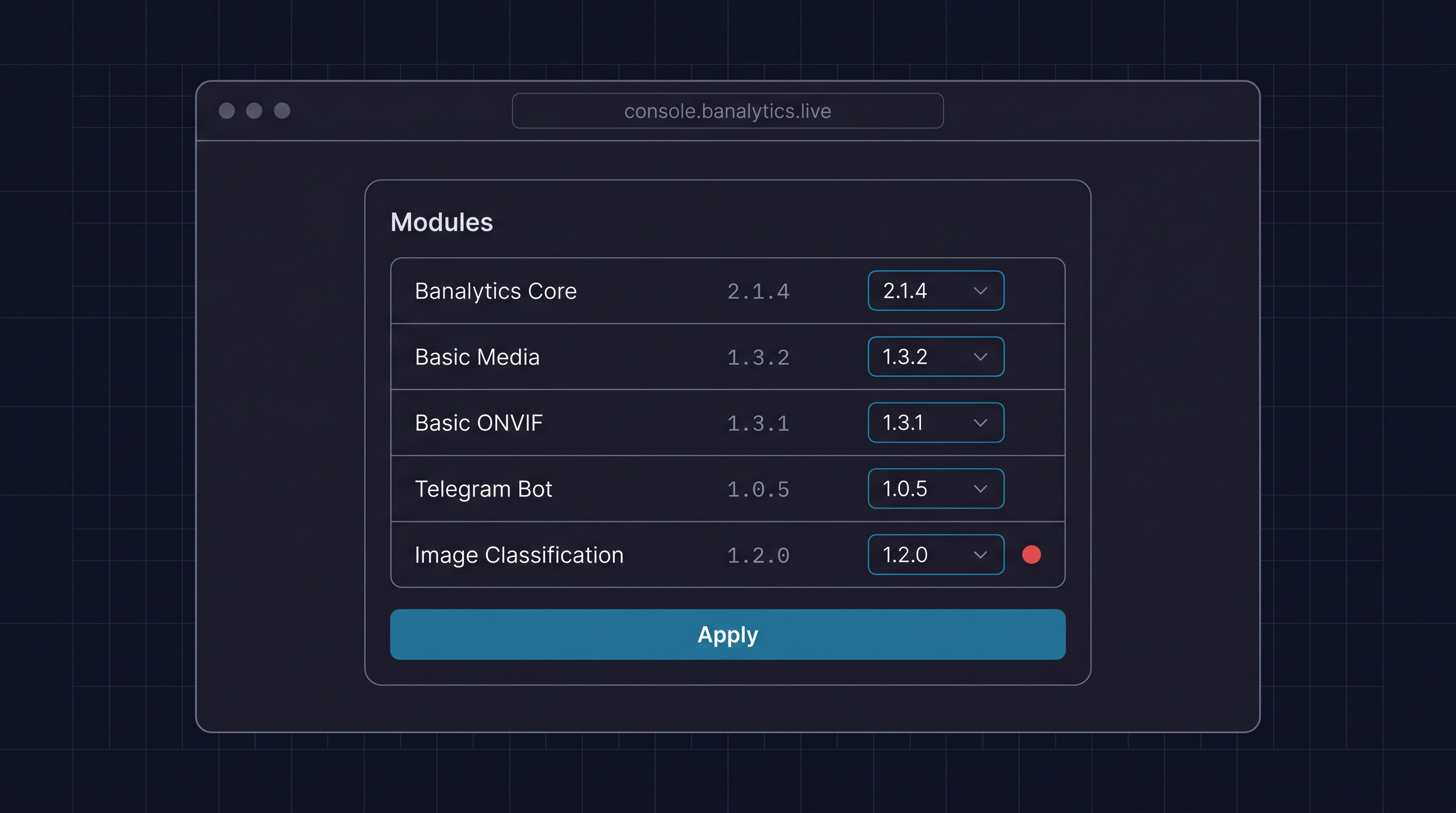
Click the action button next to the server you want to manage. A panel opens listing every installed module with its current version and a version selector dropdown.
03
Make your changes
Use the version selector for each module to choose what you want to do. A red dot next to the selector means a newer version is available for that module.
Add a module
Select the latest version of any module not yet installed. It will appear in the list once you apply.
Update a module
Choose a newer version from the dropdown. A red dot signals that an update is waiting.
Roll back a module
Select any earlier version from the dropdown. Useful if a new release causes unexpected behaviour.
Remove a module
Select Not installed from the dropdown. The module and its tasks will be removed on apply.
04
Click Apply
Confirm your selections with the Apply button. The portal sends the instructions to your server, which downloads and installs the selected versions. No manual restart is required for most module updates.
// Reading version numbers
What the A.B.C format means
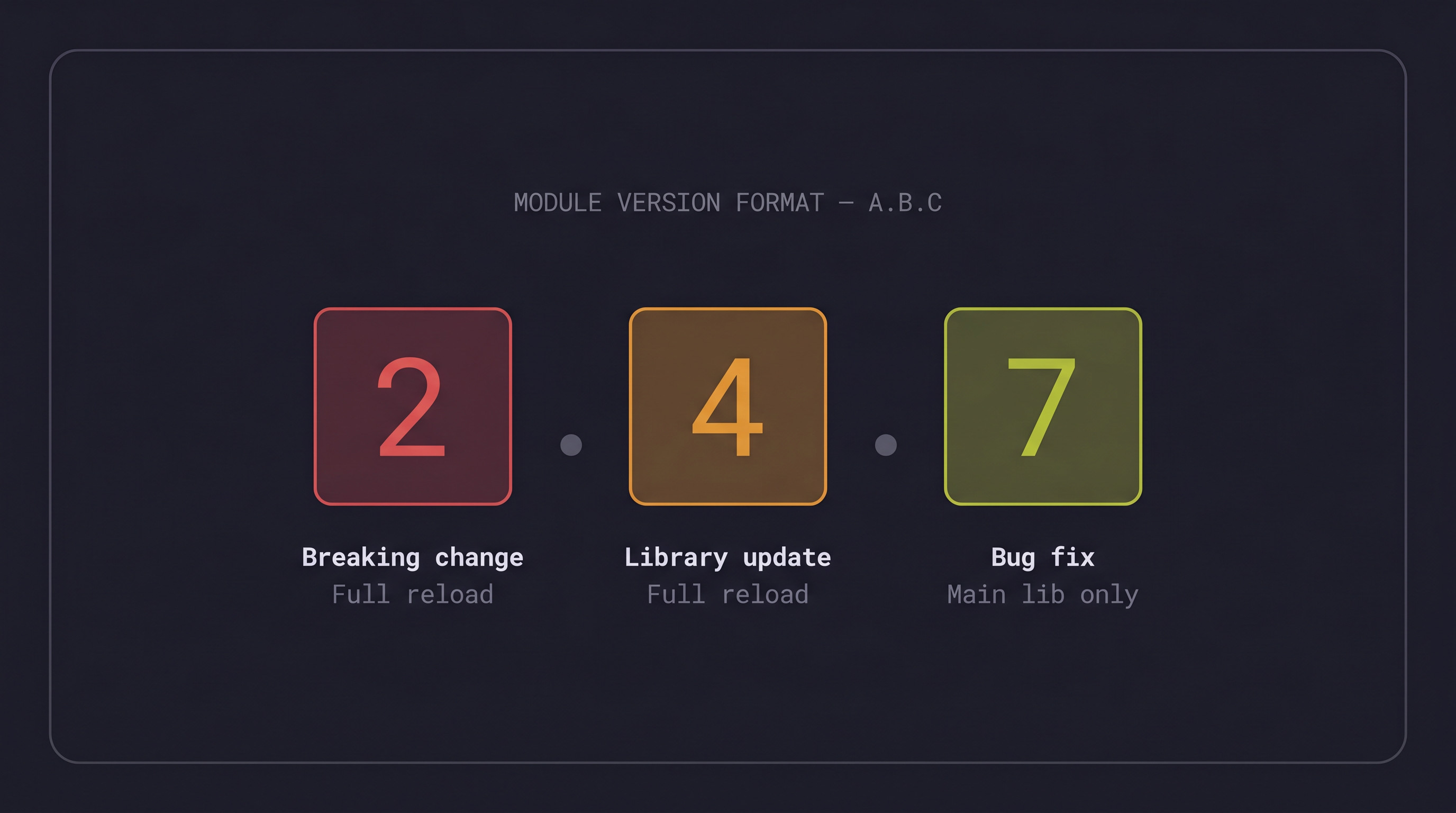
Every module version follows a three-part numbering scheme. Each segment tells you how much disruption to expect before you apply an update.
A
Breaking change
Backward compatibility is lost. A full module reload is required. Review the release notes before updating if other modules depend on this one.
B
Library or model update
A bundled third-party library or AI model has changed. A full module reload is required, but your configuration and recordings are preserved.
C
Bug fix
A backward-compatible patch. Only the main library is reloaded. No configuration changes are needed and the update is safe to apply immediately.
Rule of thumb: C-level updates are safe to apply any time. B-level updates are routine but require a brief reload. Plan A-level updates during a low-activity window and read the changelog first.
Switch to the Staging release channel to access beta builds. Staging versions are labelled clearly and can be reverted to a stable release at any time using the same version selector.
// Early access
Staging channel and beta testing
By default, the portal shows only stable, production-ready releases. Switching to the Staging channel gives you access to pre-release versions of modules and new features before they reach the general release track.
TEST
How to switch to Staging
Takes less than a minute. Fully reversible at any time.
PortalOpen the server management panel from the Servers menu.
ChannelLocate the release channel selector and switch it from Production to Staging.
VersionsThe version dropdowns for each module now show staging builds alongside stable releases. Staging versions are labelled clearly.
SelectChoose the staging version of the module you want to test and click Apply.
RevertTo go back to stable at any time, switch the channel back to Production, select the stable version, and click Apply.
Staging builds are not production-hardened. Run them on a non-critical server or a test installation. If you encounter issues, you can always roll back using the version selector without losing your existing camera configuration.