Banalytics is built around a modular architecture. You activate only the capabilities you need, keep the system lean, and pay only for premium features you actually use. Core surveillance functionality is always free.
// Two-part system
Server and web console
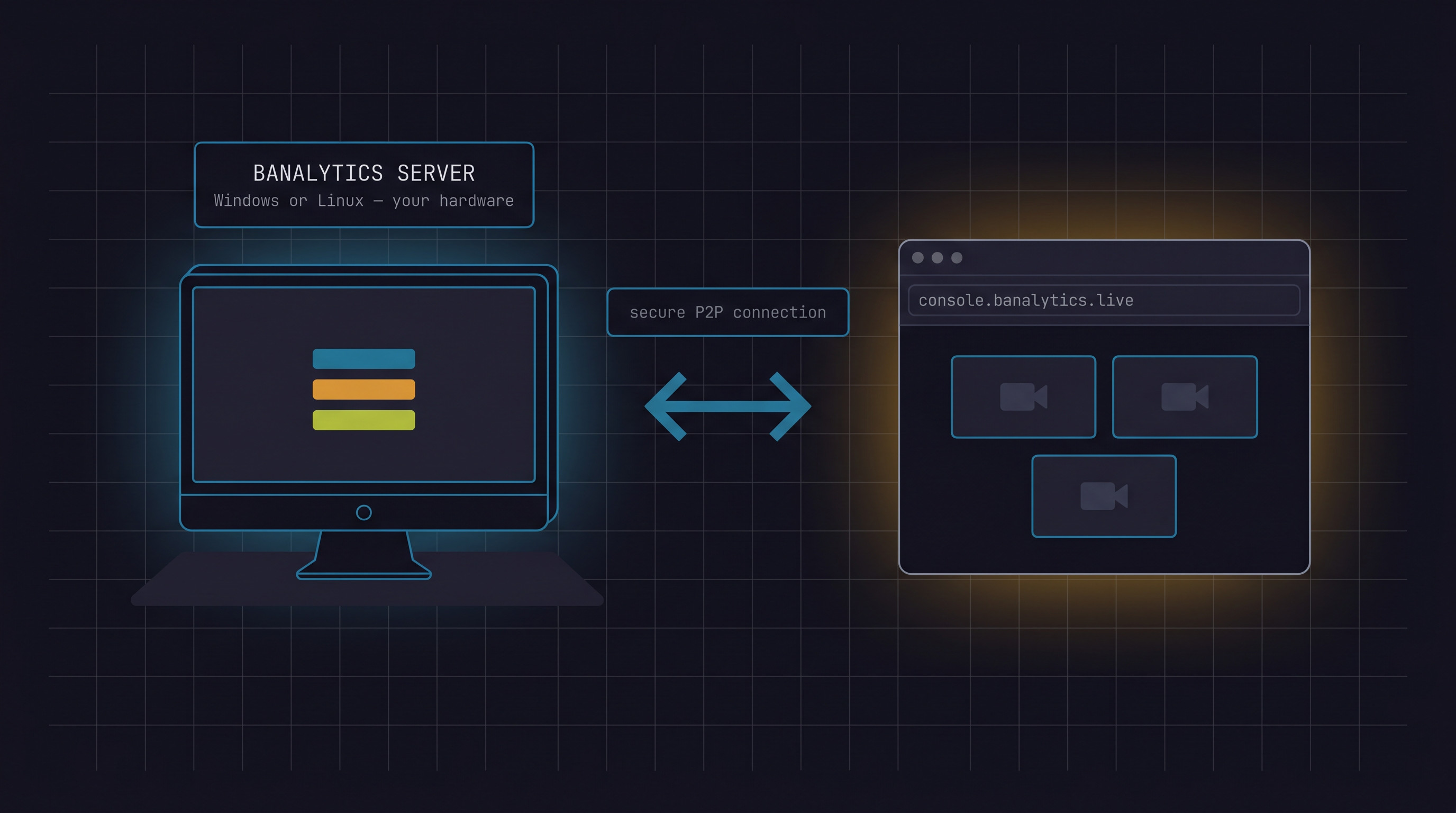
Every Banalytics deployment consists of two parts working together:
Banalytics Server
A lightweight application installed on your Windows or Linux PC. It handles all local processing: camera streams, motion detection, recording, and event-driven automation. Your data never leaves your hardware unless you choose to share it.
Web Console
A browser-based control interface accessible from any device. Connect to your servers, manage camera configurations, review event history, and monitor system health remotely without installing anything extra.
Once the server is installed, it registers with your personal account at console.banalytics.live. From that point, the web console gives you full remote access to every paired device.
The Banalytics server runs on your own hardware and processes everything locally. The web console at console.banalytics.live connects to it securely, giving you remote access from any browser without exposing your footage to the cloud.
Modular by design
Each module bundles a set of related components, tasks, and actions into a deployable unit. You install only what your use case requires. Modules are versioned independently, so updating one part of the system does not touch the rest.
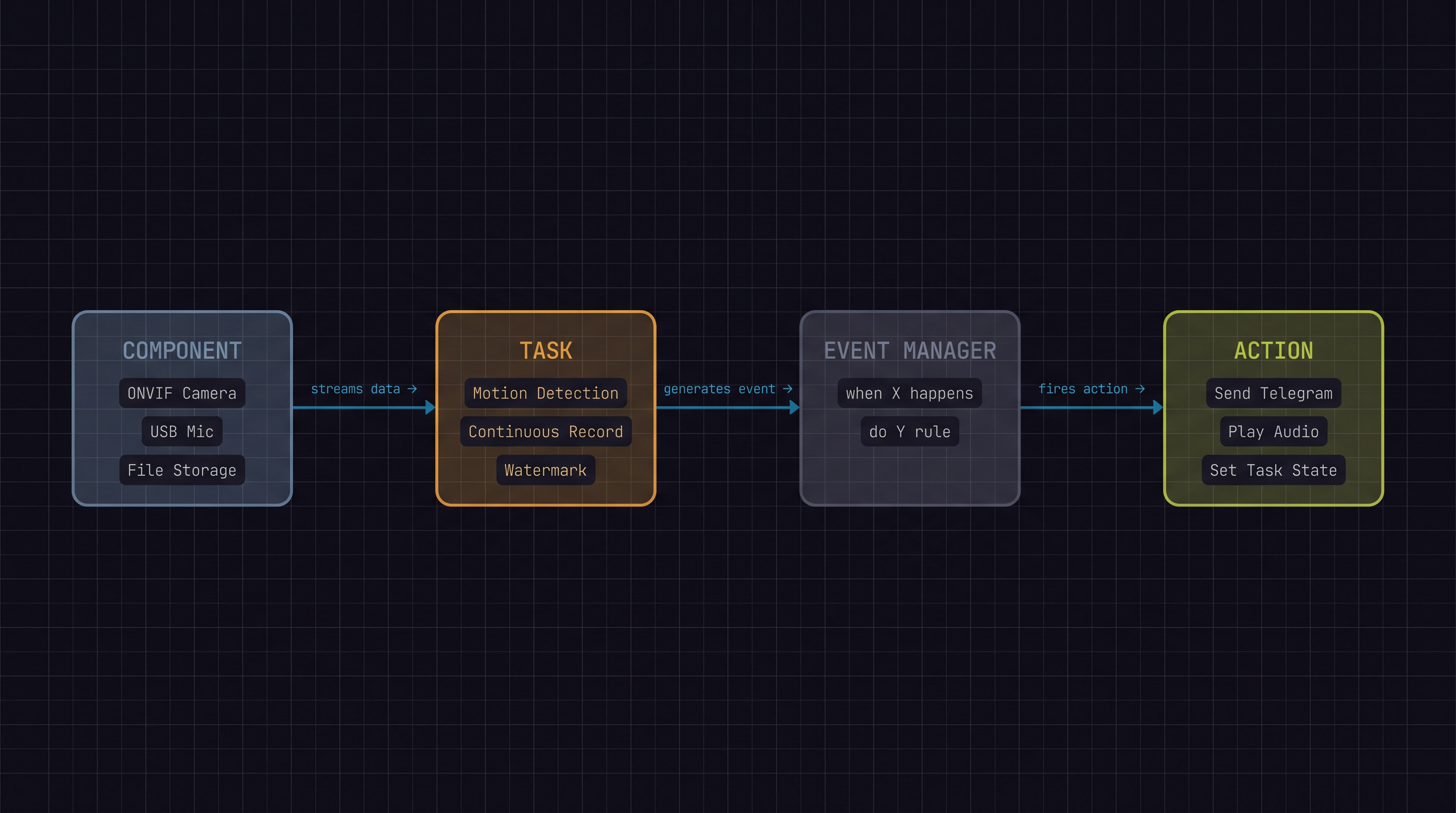
Components
Represent connected devices: cameras, microphones, storage units, bots, and other hardware.
Tasks
What the system does with a component: capture video, detect motion, process audio, record continuously.
Actions
What happens when a condition is met: send a Telegram alert, play audio, run a script, set a task state.
Data flow inside Banalytics: Components feed streams into Tasks, Tasks generate Events, the Event Manager evaluates rules, and matching rules fire Actions.
// Release numbering
Understanding version numbers
Each module uses a three-part version number in the format A.B.C. This tells you exactly how significant an update is before you apply it.
A
Breaking change
Backward compatibility is lost. A full module reload is required. Plan the update carefully if other modules depend on this one.
B
Library or model update
A third-party library or AI model has been updated. A full module reload is required, but your configuration is preserved.
C
Bug fix
A backward-compatible fix. Only the main library needs to be reloaded. No configuration changes required.
Tip: Use the Version and Module Management page to view installed module versions, check for updates, and control which modules are active on your server.
// Available modules
Module reference
The table below lists every available module with its included components, tasks, and actions.
FREE
Banalytics Core
Foundation infrastructure: system management, storage, integrations, and the full action library.
Action groupAction on taskAction on componentCommand line actionForward event to consumerPlay audioReboot agentScript actionSend emailSet task stateTimeout action
FREE
Basic Media
USB, built-in, and network camera support with motion detection, recording, and image capture.