Capture Video with
an ONVIF Camera
The Capture Video task enables live streaming, recording, and the advanced camera workflows in Banalytics. Unlike USB cameras, ONVIF cameras need this task added manually before the stream begins.
Adding the Capture Video task
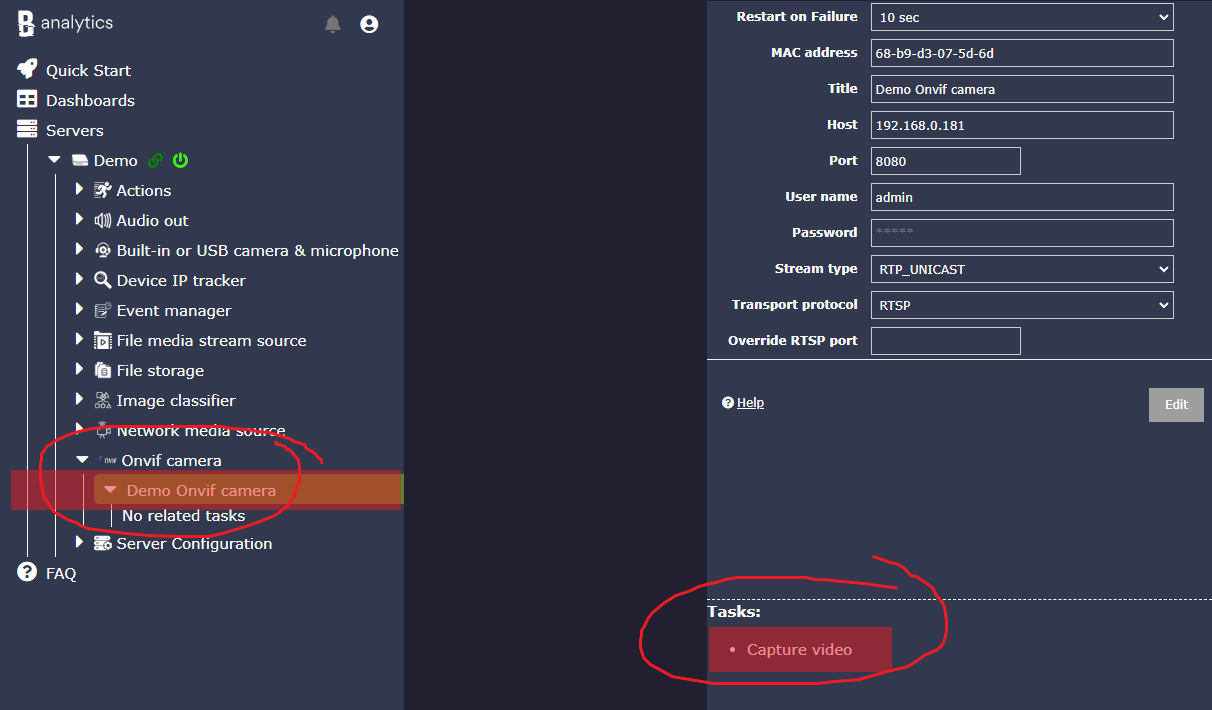
Open your ONVIF camera
Navigate to your ONVIF camera in the Banalytics server view and open its configuration panel.
Add the Capture Video task
Click the Capture Video Task button in the task section for that camera.
Select a media profile and save
Choose a media profile from the dropdown. Banalytics retrieves these profiles directly from the camera after connecting to it.
Confirm the feed is live
Once saved, the video feed appears in the preview pane. You can start, stop, or delete the capture task from there.
Recommended media profile presets
Creating multiple media profiles on your camera lets you switch between quality and bandwidth settings per task. The three presets below cover common ONVIF surveillance scenarios. RTSP is preferred over HTTP for real-time streaming.
Common issues and fixes
Configuration parameters
| Parameter | Required | Description | Default |
|---|---|---|---|
ID | Yes | A unique identifier automatically generated for this task instance. Read-only. | Auto |
Restart on failure | Yes | Controls how the task behaves when an error occurs:
| 10 sec |
Device | Yes | Select the ONVIF camera previously configured as an ONVIF Camera component. | None |
Media profile | Yes | Select a media profile retrieved from the camera. Profiles must be created on the camera's own web interface first. | None |
Rotate image | Optional | Rotates the video stream by 90, 180, or 270 degrees. Use this if the camera is mounted sideways or upside down. | 0 |
Disable audio | Optional | When enabled, the audio stream from the camera is not captured or processed. Recommended when audio is not required or to reduce bandwidth usage. | Yes |
RT Buffer (Mb) | Yes | Amount of memory in megabytes allocated for buffering real-time video frames. Increase this for high-resolution or high-FPS cameras to reduce dropped frames. | 40 |
Max fps (0 - disabled) | Optional | Sets a cap on frames per second to reduce bandwidth usage. A value of 0 disables the cap and uses the FPS defined by the camera's media profile. | 0 |
What to do after capture is running
With the Capture Video task running, you can add further tasks to enable recording, motion detection, watermarking, and AI-based classification.