Audio Output
Local Audio Player registers a physical or virtual audio output device on the agent host and plays sound files triggered by alarms, rules, or manual actions.
Play local sounds and alarms
The Audio Output component in Banalytics lets you play sound through speakers, headphones, or any audio system connected to the device running the Banalytics server. It enables local alarm sirens, voice warnings, doorbells, and two-way communication with your environment, so notifications can actively reach people near the agent host.
Instead of replacing existing cameras that lack built-in audio, you can use your PC or server as the audio output device. Plug in speakers, headphones, or connect via HDMI to get full audio output capability with your existing hardware.
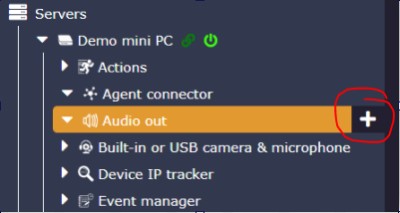
Open the Audio Out sub-menu
In the Banalytics server view, find the Audio Out section in the left panel and click the + button to add a new audio output instance.
Select the output device
Choose the speaker, HDMI output, USB audio adapter, or virtual audio sink that should receive playback. The list is populated from local Java Sound devices that expose a playable output line.
Add a PlayAudioAction
Under this player, add a PlayAudioAction and configure the audio file to play, then wire the action to an Event Manager rule to respond to motion, alarms, or other events.
Configuration parameters
| Parameter | Required | Description | Default |
|---|---|---|---|
ID | Yes | A unique, automatically generated identifier for this component instance. This value is not editable. | Auto |
Restart on failure | Yes | Restart mode after an error:
| 10 sec |
Audio device | Yes | Audio output device that receives playback. Includes built-in speakers, headphones, USB audio adapters, HDMI outputs, and virtual audio sinks connected to the device running Banalytics VMS. Changing this value restarts the component. Volume controls, equalizers, and 3D sound effects are not accessible through the application. | None |
One player per output device
Local audio player selects the physical or virtual audio output device on the agent host. The audio file, repeat throttling, and event binding are configured in PlayAudioAction, which references this player. Multiple players can coexist for different speakers or zones on the same agent.
Device selection
The audio device list is populated from local Java Sound mixers that expose a playable output line. Each player controls exactly one output device.
Clip management
The player caches opened clips per file while running. If the same file is triggered while already playing, it is stopped, rewound, and restarted from the beginning.
Multi-zone audio
Create one Audio Output component per output device to route different alarms or announcements to separate speakers, rooms, or zones independently.
Alarms, voice prompts, and multi-zone playback
Selecting the output device
Use Local audio player when the agent host should play a local sound: alarm siren, short voice warning, doorbell, operator prompt, or maintenance notification. On desktops this is usually a speaker, HDMI output, USB audio adapter, or virtual audio sink. On servers and single-board devices, make sure the service user can access the sound device and that ALSA/PulseAudio/PipeWire is available in the runtime environment.
Configuring PlayAudioAction
Audio file
Select the WAV, AAC, or MP3 file to play. WAV files are the safest choice because Java Sound support depends on installed codecs and the selected mixer's accepted format.
Cooldown period
Use Wait before next execution to prevent an alarm from restarting too frequently during noisy event bursts. Set to several seconds for motion alarms, and longer for high-frequency detectors.
Event binding
Wire PlayAudioAction to an Event Manager rule so it responds to motion detection, line crossing, ONVIF alarms, or any other event source in your security system.
Recommended profiles
Local alarm on motion
Create a PlayAudioAction for a short siren or chime, bind it to a motion detection task through Event Manager, and set Wait before next execution to several seconds so repeated motion events do not constantly restart the sound.
Voice warning
Use a short WAV voice message and trigger it from a rule such as line crossing, object detection, or ONVIF alarm. Keep the file small so playback starts quickly.
Different sounds for different rules
Create several PlayAudioAction instances that point to the same player but use different files. Event Manager can then play different messages for intrusion, detection, system failure, doorbell, or status events.
Multi-zone audio
Create one player per output device and separate actions and rules for each zone. Test every device after restart because operating systems can rename or reorder audio devices after hardware changes.
Headless Linux device
Verify that the agent service user sees the expected output in the Audio device dropdown. If no devices are listed, check OS audio permissions, /dev/snd, PulseAudio/PipeWire session availability, and whether the service runs under the same user that owns the audio session.
Testing and commissioning
Start with a simple short WAV file, manually run PlayAudioAction, confirm the physical speaker and volume, then connect the action to production event rules.
Operational notes
Device change restarts the component
Changing the Audio device setting restarts Local audio player. Plan device changes during maintenance windows if the player is wired to active alarm rules.
Clip caching
The player caches opened clips per file while it is running and closes them when the component stops. Starting the player again reopens the clips on demand.
Simultaneous clip limits
Some operating systems or mixers allow only a limited number of simultaneous clips. If several sounds must overlap, test that the selected audio stack supports parallel playback before deploying to production.
WAV format reliability
Prefer short, already-decoded WAV files for alarms and voice prompts. Actual playback depends on codecs available to the Java audio subsystem and the selected mixer. Test the file, mixer, OS volume, and service user permissions after installation and after any audio device changes.
Cooldown tuning
If Wait before next execution is too low, frequent events can make the same sound restart repeatedly. If it is too high, important repeated alerts may be suppressed during active incidents.
Headless Linux audio
On headless Linux systems, audio output depends on ALSA/PulseAudio/PipeWire availability for the service user. If no output devices appear in the dropdown, check service user audio session and /dev/snd access permissions.